
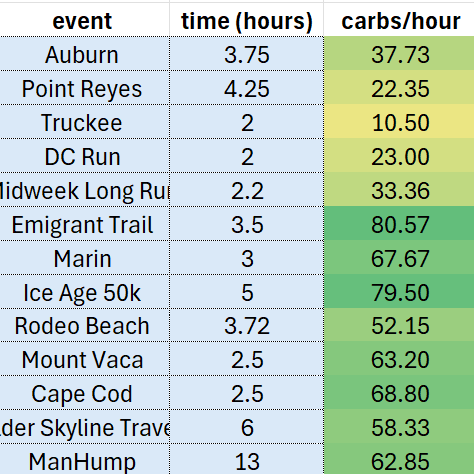
Plan, track, and improve your run or bike fueling in this Microsoft Excel spreadsheet template. It has a database of fuel products (so that only have to enter the nutrition info once) and a dashboard to see your fueling at a glance.
I use this spreadsheet to track how many carbs + calories I eat during my long runs, and I made it into a template to share! I typically plan out my fueling in advance so that I know I’m bringing enough food for my run, then update it after with what I actually ate and the duration of the activity.
Using this sheet has made is SO much easier for me to know how many carbs per hour I’m eating on runs, be able to compare how I feel between activities, and keep track of my fuel in one place.
Big thank you to my partner who helped bring my idea to life with his wizardry in Excel 🙂
how to use the fuel tracking spreadsheet

There are 3 tabs (plus a “how to use” one in the template), each with a different function.
the dashboard tab
The dashboard is the overview page, where you can see a list of your activities and associated stats at a glace.

Enter the date, a name, mileage, and time for your activity here. The name is only used on the graph (below) and the mileage is only for your reference – it can be changed to kilometers without affecting anything. The date acts as the key between the dashboard and the tracking tab, so you can only have one activity per date. A row shows the total carbs and calories per hour for all fuel items with that date on the tracking tab.
If you are using this to plan out how much fuel to bring on a activity, use the date of the activity you are planning for and enter an estimated time (in hours). Once you have added fuel to the tracking tab, the carbs and calories per hour will populate so you can adjust your packing according to your goals.
After an activity, I will update the tracking tab with what I actually ate and adjust the activity duration to get my actual fueling stats.
The dashboard tab also shows a graph of your activities over time.
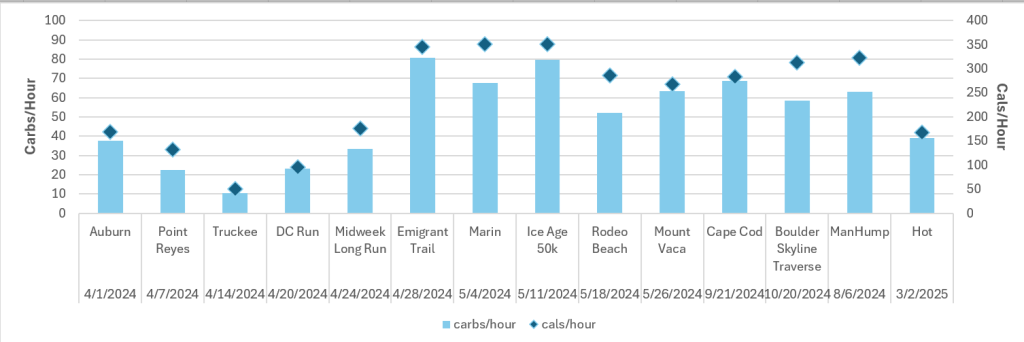
To update the graph and make more activities visible, you will need to expand the data selection to include the new rows. Click the graph to see what is currently selected + drag the purple and blue boxes to include your desired data range.
the tracking tab
The tracking tab works as the intermediary between the fuel database and the dashboard. It is a list of each item consumed during a specific activity (by date!) and the number (or portion) consumed.

- Enter the date of the activity (must be the same as one on the dashboard for it too show data there).
- Use the drop down on the fuel column to select what you ate (or plan to eat) during your activity. Only items on the fuel database tab will show up in the drop down.
- Enter the quantity of servings (listed in parenthesis on the fuel item) in the multiplier column. The total carbs, total calories, and cost columns will then auto populate based on the multiplier. This can be a whole number or a decimal.
the fuel database tab
A list of all the fuel items you use to populate the drop down on the tracking tab. The template comes with all of the ones I use, but it’s super easy to add your favorites and new products you try out.
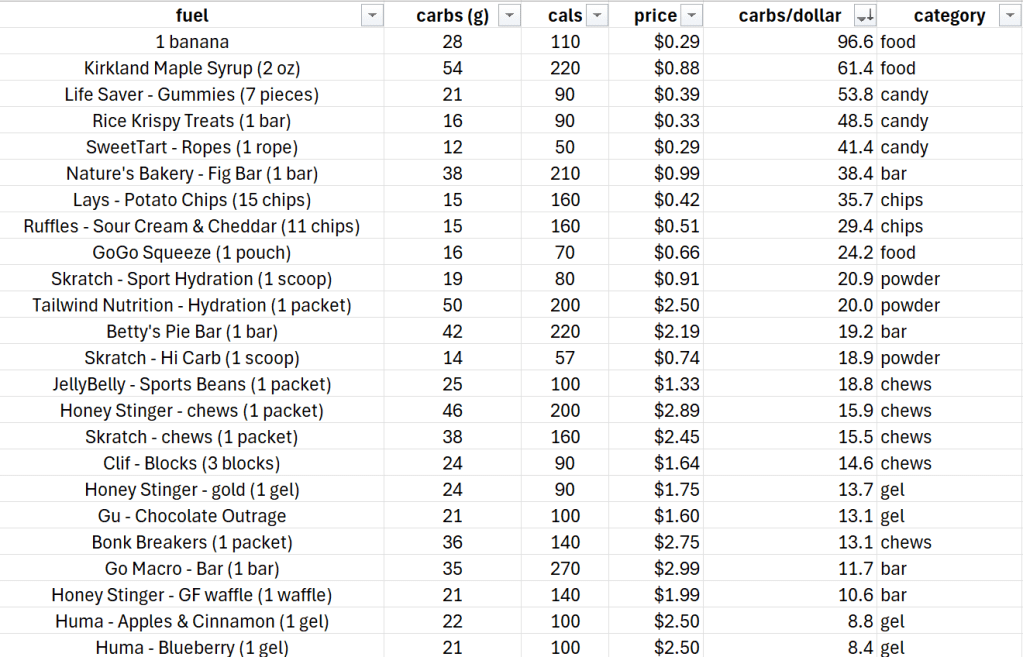
To add a new fuel option:
- Enter the name of the product. I put the serving size in parenthesis next to the name.
- The serving size I list there does not always reflect the serving size on the package, rather what I actually eat on a run.
- ex. Honey Stinger Gel (1 gel) or Honey Stinger Chews (1 packet)
- Enter the carbohydrates and kcal per serving you listed in parenthesis
- If you want to track cost, enter the price per serving
- I find the carbs per dollar to be a good way to measure how economical a piece of fuel is, which is why I like to include cost per serving.
Important Note! The drop down on the tracking tab uses the “fuel” column as a key. If you update the name of any product in the list, you will have to re-select those items on the tracking tab as it will throw an error.
I hope the Fuel Tracking Template helps you fuel your activities better! Reach out if you have any questions or if you want to help me turn this into a web app.
Discover more from Trail Carrot
Subscribe to get the latest posts sent to your email.
